
Step 1: Entering Contact Details
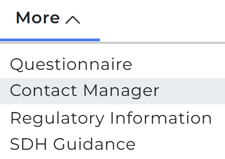
Open the "Contact Manager" page using the "More" drop down menu in the website header:
Once open, use the "add contact" button to insert a new user line:

Fill in the relevant contact information in each cell and click the blue save button in the profile column.
Step 2: Check Permissions
Please refer to the permissions column of the table in the contact manager area.
If the email address you are logged in with is listed as "Primary", the new contact will immediately receive an email with a link that they need to follow to activate their account after you save their contact details. Their row in the table will show "Invited" in the permissions column.
If the email address you are logged in with is listed as "Collaborator", you will need to have the primary user approve the collaboration request before your colleague receives their email link. Their row in the table will show "Nominated" in the permissions column until the request is approved, after which point it will show "Invited."
If you still have questions regarding your data submission, please use the search bar atop this page to browse our available guidance articles. Alternatively, you can contact our Supplier Engagement Team through the live chat function available on the SDH portal, email: datateam@valpak.co.uk or telephone: (+44)01789 208749.